About Troubleshoot It!
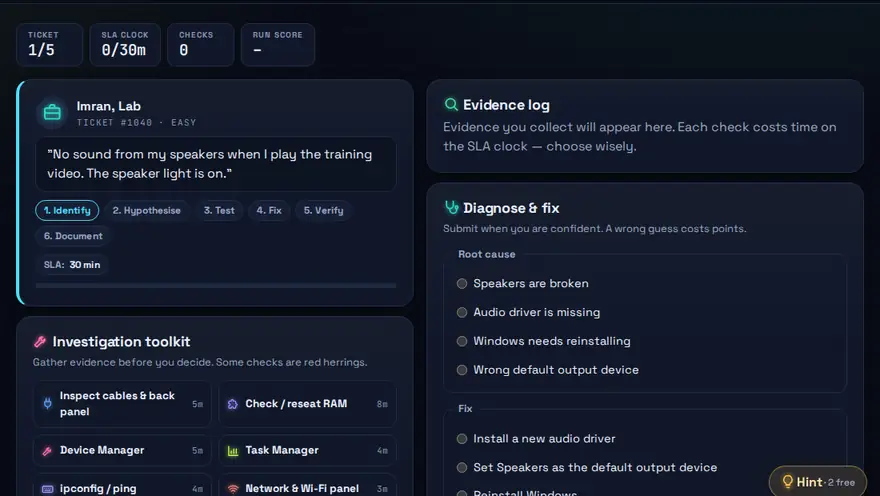
A free PC troubleshooting practice game. A PC is broken. Inspect cables, RAM, drivers, Wi-Fi and Task Manager — find the real cause in the fewest steps.
Skills you practise
- Hardware troubleshooting
- Software troubleshooting
- Systematic diagnosis
How to play
- Pick a ticket and read the user complaint.
- Use the inspection tools to gather evidence. Each check costs time.
- Submit your diagnosis and the correct fix.
Why this skill matters
Help-desk and field technicians are paid to find the real cause of a problem quickly. Most faults are simple, such as a loose cable, a full disk, a missing driver or a Wi-Fi setting, but guessing wastes time and can make things worse. A repeatable method turns a stressful, vague complaint into a short list of checks. It is useful practice for help desk beginners learning computer troubleshooting steps: ask when the problem started, check the simple things such as cables and settings first, and change one thing at a time.
Key terms you will meet
- Symptom vs cause
- The symptom is what the user sees (no picture, slow PC). The cause is the fault behind it (loose cable, runaway program).
- Driver
- Software that lets the operating system talk to a piece of hardware such as a graphics card or printer.
- Task Manager
- A Windows tool that shows running programs and how much CPU, memory, disk and network each one uses.
- Process of elimination
- Testing the simplest and cheapest explanations first and ruling them out one at a time.
- Wi-Fi vs internet
- Being connected to a router does not always mean the internet works. The fault can be the router, the line or the provider.
- Escalation
- Passing a problem to a more senior person with clear notes on what you already tried.
A worked example
A user says their PC is very slow. You ask when it started, then open Task Manager and see one program using almost all of the CPU. You end that program, the PC recovers, and you note the cause. Had the memory been full instead, you would have checked startup programs next. In the game you earn more points for finding the cause in fewer, well-chosen steps than for trying everything.
Common mistakes to avoid
- Reinstalling Windows before checking cables, power and simple settings.
- Changing several things at once, so you cannot tell which change fixed it.
- Not asking the user what changed recently, such as a new program or update.
Questions people ask
What is the best first step in troubleshooting?
Define the problem clearly: what exactly is wrong, since when, and what changed. Then test the simplest causes first.
Does this game help for help-desk jobs?
Yes. It practises the questions and checks help-desk staff use every day, though real jobs also need communication practice.
What are the basic steps to troubleshoot a computer problem?
Ask what the problem is and what changed, work out the most likely cause, test one fix at a time, check that the problem is really gone and note what you did. Simple checks such as power, cables, Wi-Fi and a restart usually come first.
Level: Beginner · Best for: Beginners · Part of the Hardware & Systems path. Pass it to earn the “Troubleshoot It! Master” badge and a game certificate.
Related: Hardware Builder, OS Installation Challenge · Next: File Management Maze · All 18 games · About · IT glossary
Quick answers: How do you fix a PC that will not turn on?
Content reviewed by Hritik · 2026-11-11.